Image Sharpness Optimization: image-rendering Property and How to Improve Tistory Thumbnail Quality
We deeply analyze how to enhance the image sharpness of websites and blogs using the CSS image-rendering property. This includes optimization techniques such as utilizing the crisp-edges and pixelated properties to mitigate the Tistory thumbnail blur issue, strategies for high-resolution (Retina) displays, and Canvas image quality settings. We suggest methods for improving user experience and SEO through image quality enhancement.
When operating a website or designing a blog, images often appear blurry or indistinct contrary to intent. Especially in responsive web design, as image sizes change dynamically, the browser automatically handles resizing. This process applies smooth anti-aliasing, which can make images appear hazy.
Improving Tistory Thumbnail Blur with image-rendering
This issue can be partially controlled using the image-rendering property, which is particularly useful for increasing the visual clarity of thumbnails, icons, and pixel art. In this article, we will discuss methods for **improving image quality** on your blog.
1. Basic Understanding of the image-rendering Property and Browser Control Principle
image-rendering is a CSS property that dictates how the browser renders an image (i.e., whether it adjusts pixels to show a smooth image). Specifically, it allows choosing between maintaining sharpness or smooth interpolation when an image is scaled.
1.1 Explanation of Key image-rendering Property Values
| Property Value | Description |
|---|---|
| auto | Uses the browser's default algorithm (smooth interpolation, default) |
| crisp-edges | Provides sharp edges by maintaining aliasing (suitable for icons, logos) |
| pixelated | Maintains pixel art style (suitable for dot graphics) |
| -webkit-optimize-contrast | Enhances sharpness in WebKit-based browsers (Safari, Chrome, etc.) (non-standard) |
.example-img {
image-rendering: crisp-edges; /* Standard */
image-rendering: -webkit-optimize-contrast; /* Chrome, Safari (Non-standard) */
image-rendering: -moz-crisp-edges; /* Firefox */
-ms-interpolation-mode: nearest-neighbor; /* IE Only */
}
1.2 Content Types Requiring the image-rendering Property
- Dot-based game graphics and pixel art
- Precise icons, logos, and design elements requiring clear lines
- High-resolution image viewers for the medical industry
- Content where clear lines and text are crucial, such as maps and charts
2. Practical Application of Image Quality Improvement and SEO Correlation
Although this property is somewhat technical, it is important for blog operators that images are clearly recognizable.
Particularly in CMS environments, including Tistory blogs, image sharpness optimization can affect more than just visual satisfactionit can also impact SEO (Search Engine Optimization). High-quality images can indirectly have a positive effect on SEO by increasing user time on page and lowering bounce rates.
2.1 Thumbnail Image Optimization and CSS Control
Images inserted in the blog body generally don't cause much inconvenience, but thumbnail images often lack in terms of resolution, aspect ratio, and clarity. As thumbnails directly affect the Click-Through Rate (CTR), separate optimization is essential.
2.2 Example Thumbnail CSS Structure and Property Explanation
div class="gallery"
img src="product.webp"
class="optimized-thumb"
width="400"
height="300"
alt="제품 썸네일"
/div

style
.optimized-thumb {
width: 100%;
height: auto;
image-rendering: crisp-edges;
object-fit: contain;
border: 1px solid #f0f0f0;
transition: transform 0.3s ease;
}

.optimized-thumb:hover {
transform: scale(1.03);
filter: contrast(1.1);
}
/style
2.3 Direct Modification of Tistory Image Thumbnail Code
Tistory loads thumbnail images based on a special image placeholder ({이미지}). You can directly modify the resolution placeholder (e.g., C58x58) in the thumbnail load URL to fetch a higher resolution thumbnail. It is necessary to add rendering control during this process.
Original Code
src="//i1.daumcdn.net/thumb/C58x58.fwebp.q85/?fname=" alt=""Modified Code (Explicitly increasing thumbnail size for sharpness improvement)
src="//i1.daumcdn.net/thumb/C600x336.fwebp.q85/?fname=" alt=""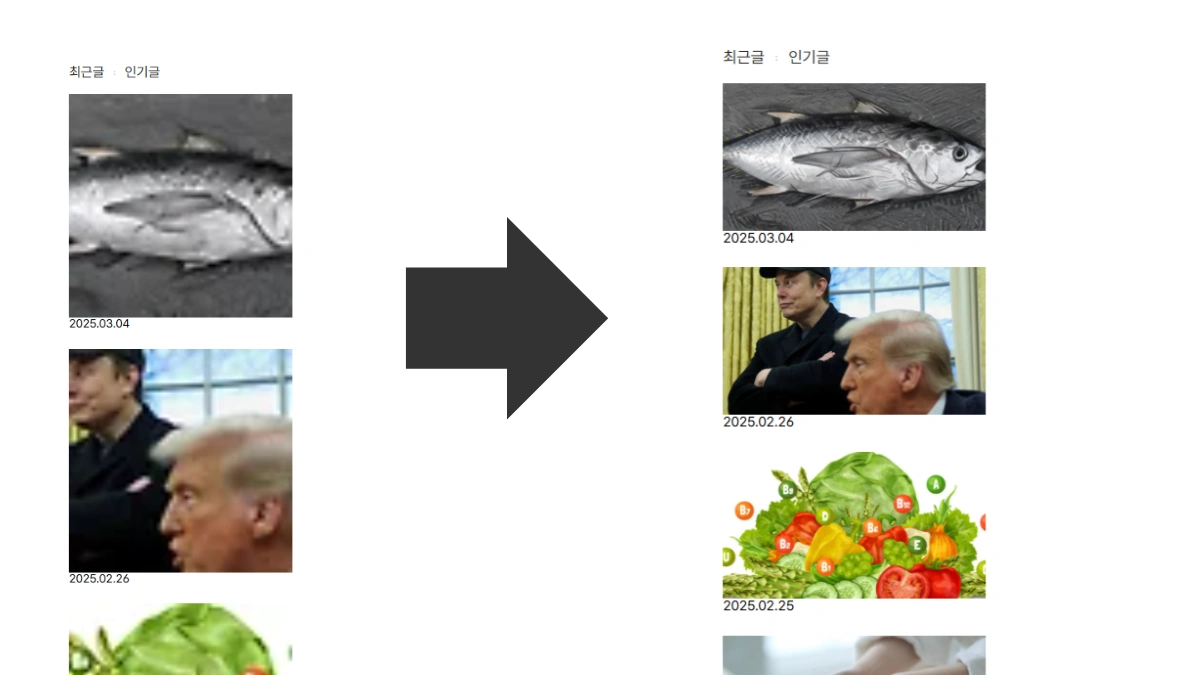
2.4 Strategy for High-Resolution (Retina) Display Support
On high-resolution displays, using images of standard resolution can result in blurring due to the difference in pixel density. Combining media queries and the image-rendering property is effective in solving this problem.
@media (-webkit-min-device-pixel-ratio: 2),
(min-resolution: 192dpi) {
.high-dpi-img {
 background-image: url('image@2x.jpg'); /* Conditionally load 2x resolution image */
 image-rendering: crisp-edges; /* Maintain sharpness */
}
}
This strategy balances speed and quality by loading lighter images on standard devices and clear, larger images on high-resolution devices.
3. Performance Comparison and Step-by-Step Image Optimization Tips
3.1 Rendering Method Comparison Table: Sharpness, Performance, and Use Cases
Below is a comparison table of sharpness, performance, and use cases for the three representative rendering methods of the CSS image-rendering property.
| Rendering Method | Sharpness | Performance | Use Case |
|---|---|---|---|
| Default Resizing (auto) | △ | ★★★ | General photos (smooth scaling) |
| crisp-edges | ★★★ | ★★ | Icons, Logos (maintaining sharp boundaries) |
| pixelated | ★★ | ★★★ | Dot Graphics (intentional pixel magnification) |
3.2 Comprehensive Step-by-Step Image Optimization Tips
- Secure Original Resolution: Must be created at 2x the display size for sharpness in high-resolution environments.
- Format Selection: Consider WebP (latest browsers), PNG (transparency, icons), and JPEG (general photos) in that order.
- CSS Settings: Control image presentation by combining properties like image-rendering and object-fit.
- Performance Check: Test loading speed and quality using Chrome DevTools or Lighthouse to find a balance point.
4. Advanced Utilization Techniques for Blog Image Improvement
4.1 Canvas Image Quality Setting (imageSmoothingEnabled)
When drawing or manipulating images using the HTML5 Canvas element, rendering quality can be directly controlled via JavaScript.
- The
imageSmoothingEnabledproperty is an option to toggle the pixel interpolation (blur) effect on or off when scaling Canvas images. - Setting it to false keeps the pixel units clean, which is useful for displaying dot graphics or pixel art.
const canvas = document.getElementById('myCanvas');
const ctx = canvas.getContext('2d');

ctx.imageSmoothingEnabled = false;
ctx.webkitImageSmoothingEnabled = false; // For Chrome, Safari
ctx.mozImageSmoothingEnabled = false; // For Firefox
4.2 SVG Filter Combination Example
Using SVG (Scalable Vector Graphics) filters allows for the precise application of various graphic effects while maintaining image sharpness. For example, effects like blur (feGaussianBlur), brightness (feComponentTransfer), and shadow (feDropShadow) can be combined.
svg width="0" height="0" style="position:absolute; visibility:hidden;"
defs
filter id="combinedFilter" x="-20%" y="-20%" width="140%" height="140%"
!-- 1. Blur Effect --
feGaussianBlur in="SourceGraphic" stdDeviation="3" result="blurred"/

!-- 2. Brightness Adjustment --
feComponentTransfer in="blurred" result="brightened"
feFuncR type="linear" slope="1.2" intercept="0"/
feFuncG type="linear" slope="1.2" intercept="0"/
feFuncB type="linear" slope="1.2" intercept="0"/
/feComponentTransfer

!-- 3. Shadow Effect --
feDropShadow dx="4" dy="4" stdDeviation="2" flood-color="rgba(0,0,0,0.5)" /
/filter
/defs
/svg
5. Cross-Browser Compatibility and Final Optimization Code
5.1 Ensuring Cross-Browser Compatibility
The image-rendering property may require prefixes or not support certain values across different browsers. To achieve consistent sharpness across all major browsers, it is advisable to declare multiple properties simultaneously as shown below.
.img-optimized {
image-rendering: crisp-edges;
image-rendering: -webkit-optimize-contrast;
image-rendering: -moz-crisp-edges;
-ms-interpolation-mode: nearest-neighbor;
}| Property | Description | Target Browsers |
|---|---|---|
| image-rendering: crisp-edges; | Displays images sharply (maintaining pixels) when magnified, without blurring | Standard Browsers |
| image-rendering: -webkit-optimize-contrast; | High-quality rendering maintaining contrast on Chrome, Safari (non-standard) | WebKit Family (Chrome, Safari) |
| image-rendering: -moz-crisp-edges; | Firefox-specific option for maintaining pixel sharpness | Firefox |
| -ms-interpolation-mode: nearest-neighbor; | IE-specific option for maintaining the closest pixel value when magnifying images | Internet Explorer |
5.2 Final Recommended Strategy for Enhancing Blog Image Sharpness
Image optimization is not an issue solved by just one CSS property; a comprehensive approach is necessary, including:
- Securing high-quality originals (2x the display resolution)
- Choosing the appropriate image format (WebP priority)
- Applying the correct image-rendering property for the situation
- Conducting high-resolution compatibility and performance tests concurrently
Simply making images appear clearer can enhance the blog's professionalism and credibility, positively impacting the user experience.
Frequently Asked Questions (FAQ) - Image Rendering Optimization
Q1: Why do images appear blurry on the blog?
This is because the browser applies smooth interpolation (anti-aliasing) when automatically resizing images. While the browser attempts to make the image look smooth, this process reduces sharpness, making it feel hazy. You can adjust the sharpness using the image-rendering property.
Q2: Which image-rendering property provides the highest sharpness?
It depends on the type of image. For images where sharp borders are crucial, such as icons, logos, and pixel art, rather than general photographs, the crisp-edges or pixelated properties are perceived as the sharpest because they maintain clear edges.
Q3: What is the specific way to make Tistory thumbnails sharper?
There are two methods. First, secure original quality by changing the resolution placeholder (e.g., C58x58) in the thumbnail image load URL to a larger value (e.g., C600x336). Second, apply image-rendering: crisp-edges; to the corresponding thumbnail CSS to minimize the browser's interpolation effect.
Q4: How should high-resolution (Retina) displays be handled to provide the sharpest images?
Create a 2x resolution image, and use a CSS media query (e.g., @media (-webkit-min-device-pixel-ratio: 2)) to conditionally load that 2x image only in high-resolution environments. Additionally, utilize the image-rendering and srcset properties together to balance sharpness and loading speed.