Blog CLS Performance Optimization: Complete Guide from Error Check with Chrome DevTools to Simple Fixes
CLS (Cumulative Layout Shift) is a crucial web performance metric that decisively impacts SEO. This guide explores the specific methods for all website operators, including Tistory blog owners, to directly measure CLS errors using Chrome DevTools and optimize blog performance by applying practical code solutions like `min-height`, the `CSS contain` property, and Skeleton UI.
Website performance, speed, and user experience are core elements of SEO (Search Engine Optimization). Among these, CLS (Cumulative Layout Shift) is one of the web performance metrics highly valued by search engines. Unlike other blogging platforms, Tistory blog operators can freely modify their blog's design to suit their preference. This feature is one of Tistory's biggest advantages.
But did you know?
This advantage can sometimes become a drawback.
Recklessly modifying a blog skin often leads to mistakes that negatively affect the blog's performance score. While design and accessibility are important, we recommend making modifications only within the scope that does not cause issues with web performance metrics (including CLS).
If you are planning skin modifications, be sure to check for performance issues using the methods introduced below.
How to Measure CLS and Directly Fix Blog Layout Errors using Chrome DevTools
Among the inspection items, the most important one is CLS.
Most performance issues are related to the blog's server environment, making them difficult to fix. However, CLS issues mostly stem from the operator's skin modifications, which means they can be fixed independently.
What is CLS (Cumulative Layout Shift)?
CLS is a metric that quantifies the unexpected movement of visual elements during page loading. For example, it occurs when an ad or image loads late, causing the surrounding text to be pushed down. A high CLS score leads to user discomfort and can negatively affect search rankings. For a detailed explanation of the CLS concept and measurement criteria, please refer to this article (What is Lighthouse?).
Steps to Check Blog CLS Errors using Chrome DevTools
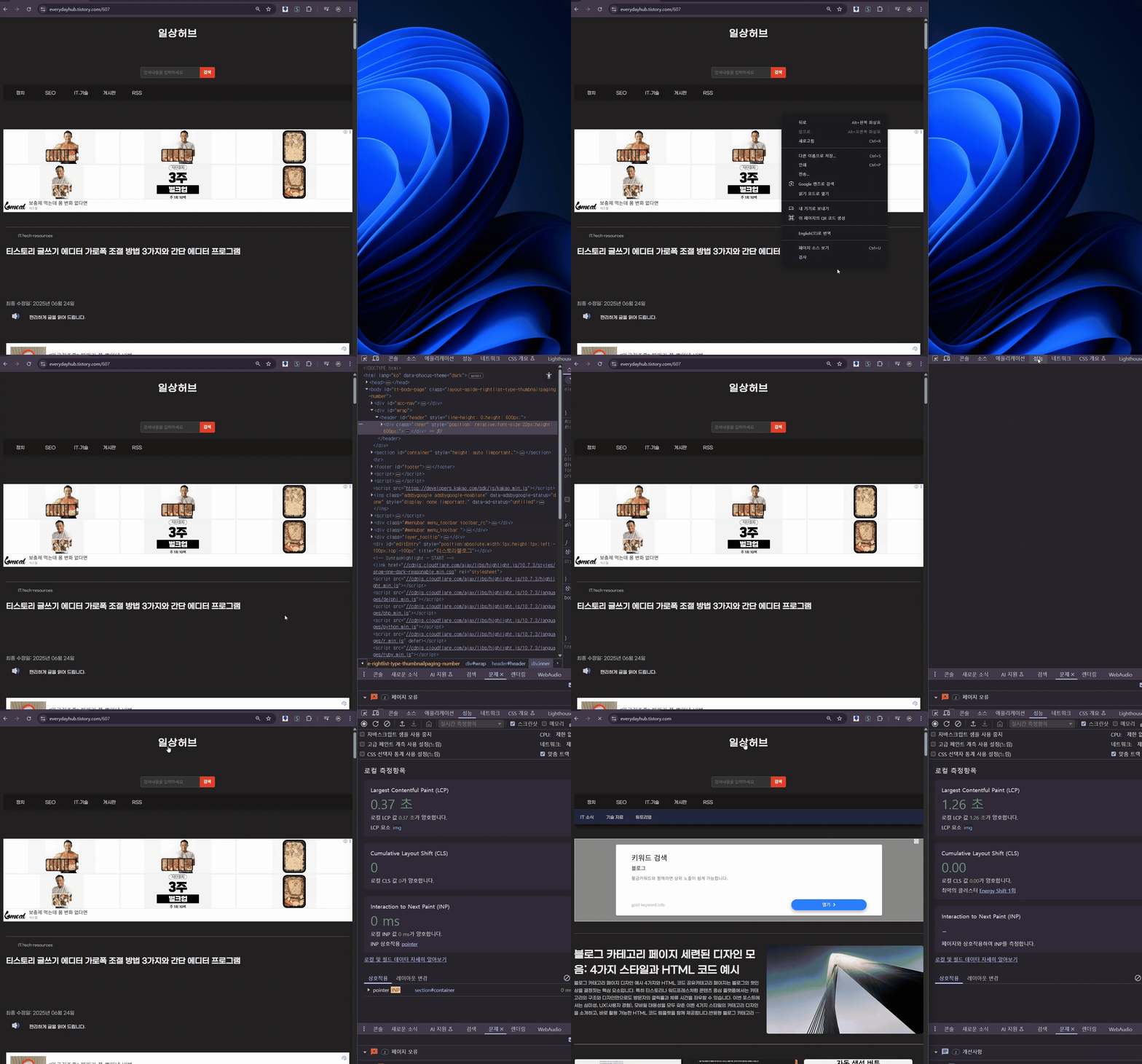
Website performance testing has been greatly improved in the latest versions of the Chrome browser, making it easy for anyone to measure and identify problems. The usage is very simple, allowing users without special technical knowledge to directly check and solve performance errors on their website or blog. First, access the blog or site you want to measure and modify using Chrome.
1. Opening Chrome DevTools
- Press F12 or right-click and select Inspect on the blog page
- Or Ctrl + Shift + I (Cmd + Option + I on Mac)
2. "Performance" Tab 이동 및 측정
- Click the Performance tab at the top
- Reload the page and record the loading process for a few seconds
- After completion, check the Experience area for Layout Shift occurrences
3. Automated Analysis and Score Check with Lighthouse
- Navigate to the Lighthouse tab and run Generate Report.
- You can systemically check the score for the Cumulative Layout Shift item and identify problematic elements to set improvement priorities.
Analyzing CLS Causes and Identifying Problematic Code
This process allows for real-time checking of various web performance metrics, including CLS (Cumulative Layout Shift), and systematically identifying the causes, such as structural issues or loading delays, in the blog.
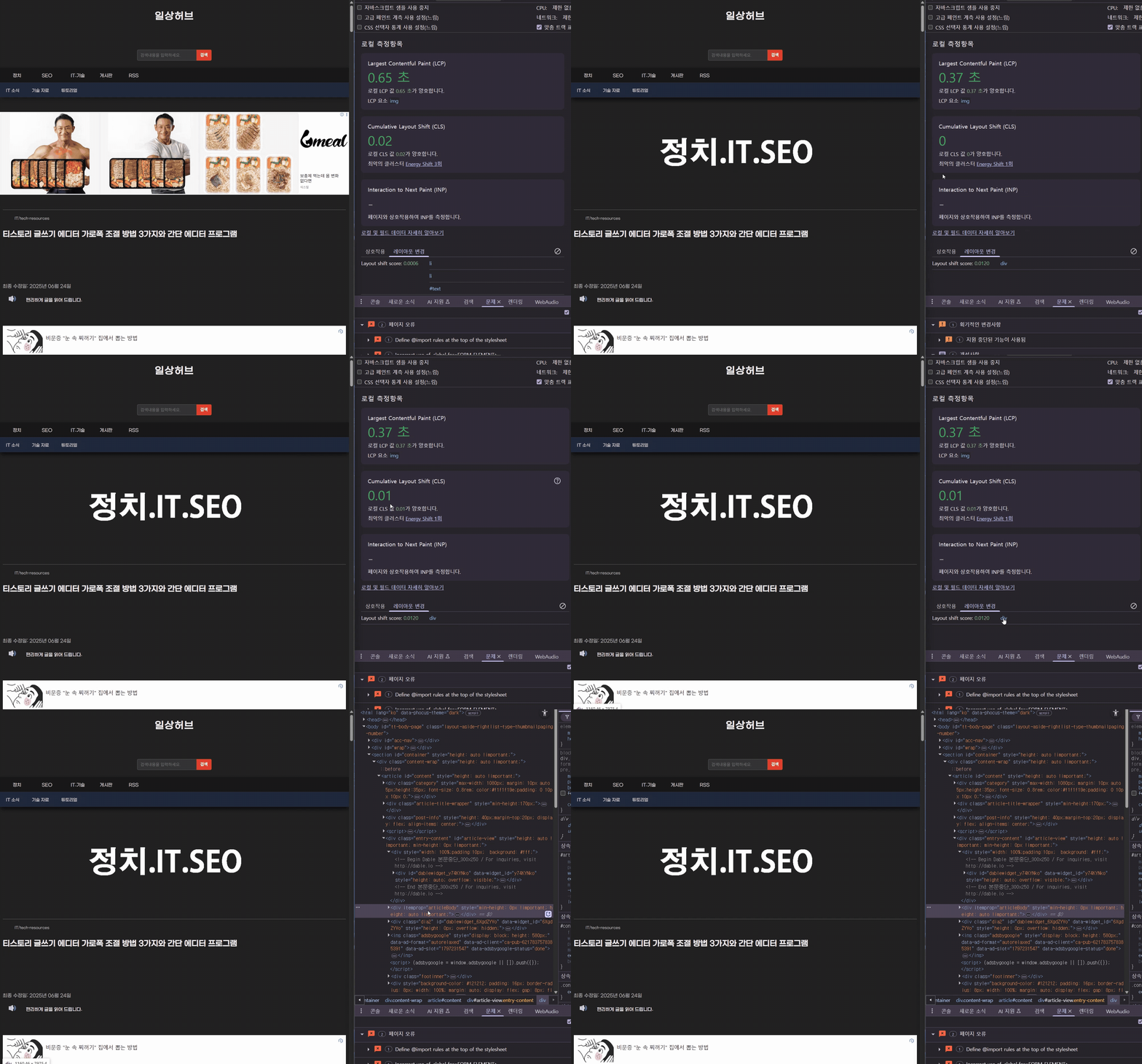
Example: Below is a case where the CLS issue score was confirmed as 0.001. You can directly check the problematic HTML/CSS code by looking at the Layout tab at the bottom.
Main Causes of CLS
- Uncertain height of dynamic content: Areas inserted by scripts, such as comment sections, widgets, or recommended posts, fail to secure initial space and push surrounding elements.
- Lazy-loaded images, ads, and iframes: Ads that are lazy-loaded or inserted via JS appear later, causing layout shifts. This commonly occurs when embedding Google AdSense ads or YouTube iframes.
- Missing fixed ratio/aspect-ratio setting: Image or video elements lack width/height attributes, expanding to their actual size after loading and pushing the surrounding structure.
- Web font lazy loading: When FOUT (Flash of Unstyled Text) occurs, text area shifts happen due to font size changes after the initial rendering.
4 Practical Methods to Resolve Blog Optimization CLS Issues
CLS (Cumulative Layout Shift) issues on web pages mostly arise from the height uncertainty of dynamic content or lazy-loaded elements. Here are 4 practical solutions that can be applied to real blogs or websites.

1. Secure Minimum Height (Use `min-height` property)
This is the most basic method, utilizing the `min-height` property to secure the estimated space before dynamic content loads. This prevents surrounding elements from being pushed when the content appears. Used with `height: auto`, it can flexibly adapt to responsive structures.
.dynamic-area {
height: auto !important;
min-height: 200px !important; /* Secure the estimated minimum height in advance */
}
2. Use CSS Containment (`layout paint style`)
Using the CSS `contain` property allows the browser to recognize the area as an independent rendering unit, minimizing the impact of internal content changes on the surrounding layout. This is particularly useful in areas where dynamic data or scripts change frequently, and it also helps improve performance.
.dynamic-area {
contain: layout paint style; /* Restrict layout, paint, and style changes to within the area */
height: auto;
min-height: 0;
}- Effect: By telling the browser that this area is independent, internal changes have less impact on the surrounding layout.
3. Apply Skeleton UI (UX Improvement and Space Securing)
If content takes time to load, showing a Skeleton UI first can reduce the user's visual confusion. It is also highly effective at reducing perceived CLS by securing the initial space and showing the expected layout in advance.
div class="dynamic-area"
!-- Loading --
div class="skeleton" style="height: 200px; background: #eee;"/div
!-- Actual Content --
/div- Advantage: It provides visual stability to the user by showing the estimated space first, significantly reducing the perceived CLS phenomenon.
4. Pre-set Height with JavaScript (Precise Control)
Using JS, you can set a temporary height (`minHeight`) before the content loads to prevent layout shifting, and then naturally release the `minHeight` after the content is loaded. This is an advanced technique useful when you know exactly when the dynamic content will load.
const dynamicElement = document.querySelector('.dynamic-area');
dynamicElement.style.minHeight = '200px';

setTimeout(() = {
dynamicElement.style.minHeight = 'auto'; // Release height constraint after loading is complete
}, 10);
Final Summary of CLS Optimization and Recommended Strategy Table
The core of CLS is "securing predictable space." No matter how flashy the blog design, the user experience is ruined if content shifts. The simplest starting point is to give `.dynamic-area` a `min-height`, using `!important` only as a last resort.
| Strategy | Description |
| `min-height` setting | Securing predictable space (the easiest fix) |
| Use `contain` property | Blocking layout interference and rendering optimization |
| Use `aspect-ratio` | Fixing the ratio of images/ads with CSS |
| Introduce Skeleton UI | Increasing perceived user stability and securing space during loading |
| JS pre-height calculation | Enabling precise dynamic layout control (Advanced) |
Frequently Asked Questions (FAQ) - CLS (Cumulative Layout Shift) and Blog Performance
Q1. What is CLS and why is it important for user experience and SEO?
A1. CLS is a web performance metric that measures the unexpected movement of visual elements on a page (e.g., text shifting because an ad loads late). A high CLS score causes user discomfort by leading to unwanted clicks or lost information, increasing bounce rates and negatively affecting the Google SEO (Core Web Vitals) score.
Q2. What is the fundamental reason why CLS issues frequently occur in Tistory blogs?
A2. Tistory allows free modification of the skin's HTML/CSS. When the operator adds images, ads, or external widgets (comments, recommended posts) without explicitly specifying their height, these elements lazy-load and push the surrounding layout, which often increases the CLS score.
Q3. Which CSS properties should be prioritized for effectively solving CLS issues?
A3. The core of CLS resolution is "space securing." The most effective property is `min-height` to designate the estimated height before loading. It is also recommended to use the `CSS contain: layout` property, which isolates the element to prevent internal changes from affecting the external layout, or the `aspect-ratio` property to fix the ratio of images/videos.