Why Are Strange Ads Appearing on My Blog? Ad Exposure Principles and AdSense Optimization Strategies
This article explains why AdSense ads appear irrelevant to your content, based on context, keywords, and targeting structure. It covers ad exposure error causes, solutions, and checking using Incognito Mode for blog revenue optimization.
Have you ever carefully observed the ads shown while reading your own blog posts? Sometimes, even when you write a travel review or a product review, unrelated diet or loan ads appear. It's easy to just overlook this phenomenon, thinking, "Ads are usually like that anyway." In this article, we will find out why ads irrelevant to your blog post are appearing, and how to identify and fix the cause. Solving this problem is crucial for increasing your ad revenue rate.
The Basics of AdSense Ad Optimization: In-Depth Analysis of Keyword, Placement, and Targeting Methods
Various factors, including the context of the text, keyword usage, and ad code placement, influence the ad exposure results. If an ad feels out of place, instead of simply viewing it as an ad problem, you should check if there are typos or omissions in the text's context or keyword structure, or if sufficient relevant terms are included in the main body.
We will first examine how ads are displayed, focusing on the representative advertising platform, Google AdSense. Google uses a combination of these two targeting methods to provide the highest value to advertisers.
1. Difference in Targeting Methods: Context vs. User Interest
Google AdSense primarily displays ads in two ways. Interest-based targeting might be the main culprit for irrelevant ads.
| Ad Type | Description | Result |
|---|---|---|
| Content-Based Targeting | Analyzes page content, keywords, meta tags, and title to display relevant ads | Ads related to the blog post content appear |
| Interest-Based Targeting | Based on user-specific information such as the visitor's search history, YouTube viewing, and website visit records | Specific ads may only be visible to the user |
❗ This means Visitor A might see a diet ad, while Visitor B sees a car ad on the exact same post. This occurs when the advertiser bids using user targeting instead of context-based targeting.
2. Lack of Appropriate Keywords in Content (Contextual Misunderstanding)
If the post content is too short or lacks clear topic keywords, Google may fail to understand the context, leading to the insertion of irrelevant ads or the display of only low-CPC ads.
Solution: Keyword Density and Structuring
- Clearly include topic-related keywords in the title, body, and meta tags.
- H1-H3 tags are also used by Google to analyze the content's important context. A proper hierarchical structure must be maintained.
- Ensure sufficient information volume, at least 1,000 characters, to help Google AI accurately identify the post's topic.
3. Problem with Ad Insertion Placement: Detached from the Main Content
If an ad is placed in an area detached from the main body (e.g., header, sidebar, below comments), it mainly displays site-wide or user-based ads, which reduces contextual relevance.
Solution: Ad Proximity Optimization
- Place ads in the middle of the main content or close to the context.
- Check if the ad script is included in the DOM near the context. Inserting manual ads between paragraphs is often more advantageous than auto ads.
4. When GAM / AdSense Accounts are New or Under Learning
For new accounts, the Google AI may still be learning the blog's content patterns. An initial phase of testing various ads is necessary to find the optimal ads.
Generally, the ad precision gradually increases if the blog is operated for more than 1-2 weeks and more posts are accumulated. Consistently publishing high-quality content on the same topic is important.
5. Checking Blocked Ad Categories: Error in Blocking Competitive Ads
If ad categories are manually blocked in the Google AdSense management page, ads on those topics won't appear, leaving only irrelevant ads and potentially lowering the ad rate (CPC). Blocking too many categories reduces competitive bidding and negatively affects revenue.
How to Check: AdSense Settings Adjustment
- In the AdSense Blocking controls - Content tab, review Sensitive categories/General categories and adjust blocking status only when necessary.
Example Scenario: Understanding the Advertiser Bidding Method
- Blog Post: "Real Estate Investment Know-How"
- Visitor A: Frequently visits diet-related sites $\implies$ Diet supplement ad exposure
- Visitor B: Searches for cars frequently $\implies$ Vehicle insurance ad exposure
- The advertiser, in this case, bid at a high price based on the visitor's interest rather than the blog topic. This is normal according to ad exposure principles.
Inspection Checklist Summary: Ad Quality Management
| Item | Action |
|---|---|
| Ad Targeting | Increase the ratio of contextual ads among user-customized and contextual ads |
| Keyword Optimization | Use clear topic keywords in the title/body/tags |
| Ad Placement | Place in the middle of the body or close to the content |
| Content Length | Avoid posts that are too short (secure information density) |
| Category Blocking | Block only the minimum necessary to maintain competitive bidding |
Why Check in Incognito Mode? The Importance of Context-Based Testing
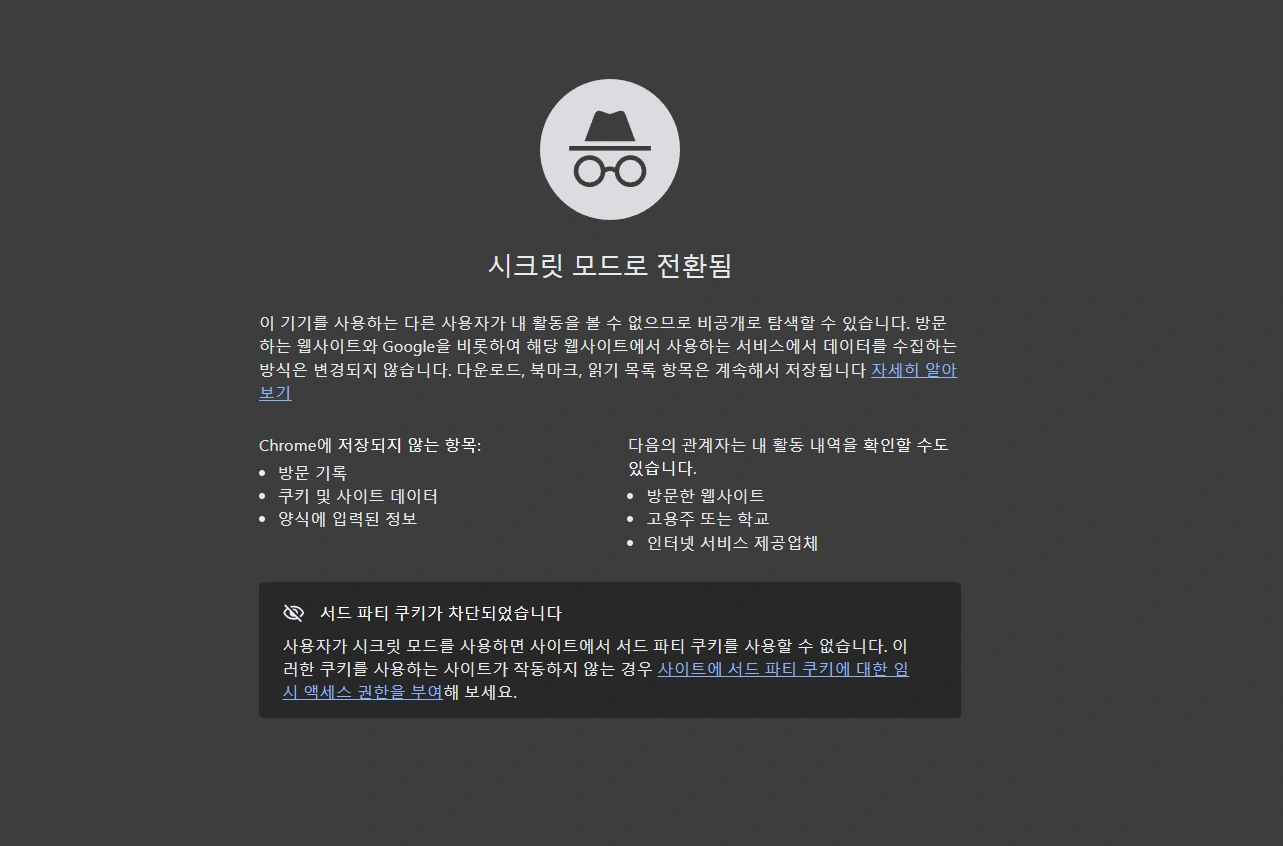
Google AdSense ads are displayed in two ways: content-based ads and user-based ads. In a regular browser, user-based ads are prioritized. This means unrelated ads might appear based on your search history. Incognito Mode is essential for checking the objective context-based ad exposure status by excluding personal information.
| What you can check in Incognito Mode | Description |
|---|---|
| Whether context-based ads are applied correctly | You see ads based only on content, without visitor history |
| Checking keyword targeting status | Check if your post is guiding appropriate ads |
| Viewing ads from the perspective of an actual different user | Confirm ad exposure status based on general user criteria, not your interests |
How to Check with Incognito Mode
- Chrome: Ctrl + Shift + N (or Menu $\implies$ Open New Incognito Window)
- Edge/Whale: Ctrl + Shift + N (InPrivate Window)
- Firefox: Ctrl + Shift + P
Points to Note when checking
- AdBlock must be disabled to see actual ads.
- Refresh the page to check various ad types multiple times.
- Google AI may load various test ads even in Incognito Mode, so the results are not entirely fixed.
- Frequent access in Incognito Mode may skew your blog traffic analytics, making accurate statistics difficult. Refrain from using it except for the purpose of checking actual ads.
As such, the ads displayed on a blog are influenced by various factors like the content's contextual structure, keyword optimization, and ad placement, rather than just being a platform issue. If ads appear differently from the intended direction, inspect the quality of the main content and test it in Incognito Mode!
Frequently Asked Questions (FAQ) - Ad Exposure Principles
Google AdSense displays ads based on visitor interests (search history, YouTube viewing, etc.) or page context. Thus, ads unrelated to the content are primarily due to user-customized ads. It could also be because advertisers set high bids for profit.
If the post is short or lacks core keywords, Google may fail to correctly grasp the context, leading to the insertion of irrelevant ads. It is important to include clear keywords in the title, body, and tags. You must focus on the topic and increase information density.
Opening your blog in Incognito Mode allows you to check if context-based ads are displayed correctly in a state without visitor history. You must disable AdBlock. This test helps assess the accuracy of content targeting.