AI Assistant Terminal Command Automation for Beginners, How to Use Gemini CLI
We provide a detailed guide on how to automate terminal commands and maximize work efficiency using Google's AI assistant tool, the Gemini CLI. Beginners can easily follow the steps from installing the Gemini CLI, which handles AI tasks like document organization, file management, and code summarization using only natural language commands without complex coding knowledge, to setting up the Node.js environment, registering the API key, and troubleshooting common errors. This article contains essential information for enhancing development productivity and office automation.
If you thought AI was only for coders or developers, it's time to change your mind. Google's Gemini CLI is an AI assistant tool that helps even general users handle document organization, file management, and automated task processing with a single line of natural language command. Since the AI executes tasks immediately when you input commands like "organize this folder for me, summarize recent work" without complex programming knowledge, you can actively utilize it for office automation and personal work.
Automate Tasks with Gemini CLI: Code Summarization and File Organization with AI
In this article, we will detail what the Gemini CLI is, how to install and use it easily, and provide usage tips with real-life examples.
1. What is the Gemini CLI? (Defining the LLM Command Tool)
The Gemini CLI is a command-line interface created to easily use Google's generative AI Gemini model in the terminal (command prompt). It significantly enhances development productivity by allowing complex tasks such as code analysis, document summarization, change history checking, and automation to be handled with natural language commands.
The scalability through MCP support is a feature that allows the AI to connect and work with other programs or tools when it cannot do everything on its own. For example, the AI can call other programs that draw pictures or organize files to handle those tasks instead of just writing text. This connection of multiple tools, helping the AI do more work, is what MCP support means.
The supervision feature based on Human in the Loop is a function where a person intervenes to review and modify results when the AI might make a mistake. In other words, a person acts as a supervisor while the AI is working, preventing incorrect judgments and increasing accuracy.
Simple Real-Life Examples (Terminal Command Automation Examples)
Below are examples of natural language commands that can be used in the terminal.

Tell me why this code is buggy
Organize my Downloads folder. Only keep recent files!
Summarize this week's work and create a Markdown document
Refactor this shell script for me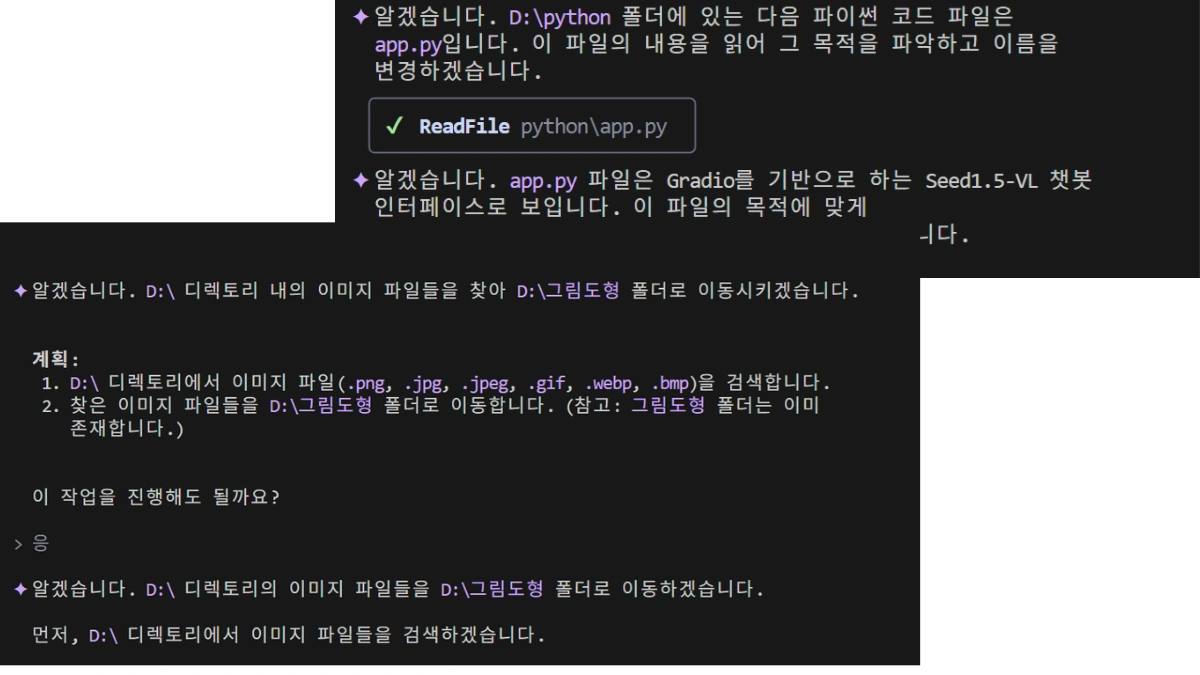
Key Features (Development Productivity Enhancement Elements)
- Codebase understanding and documentation
- Git commit history summarization
- Large-scale project exploration
- AI-powered task automation
- Convenient UI provided with various theme support
Function Descriptions
| Code Writing and Modification | AI codes automatically when commanded in natural language, e.g., 'Fix this code' |
| Error Debugging | Analyzes the cause and suggests solutions when shown an error message |
| File Organization | Automatically organizes files in a folder by date/type |
| Automation | Repetitive commands can be processed like a script |
| Web Search Integration | Provides more accurate answers by linking with real-time Google search |
| VS Code Integration | Gemini assistant can be used in both the code editor and the terminal |
2. Prerequisites for Gemini CLI Installation (Node.js Environment Setup)
The Gemini CLI is not a web-based tool but a program that runs in your computer's terminal (command window). Therefore, you must first prepare the environment for this program to function correctly, and the most basic requirement is Node.js.
Node.js is a tool that allows you to run programs on your computer using JavaScript. Although JavaScript originally only worked on websites, Node.js enables its free use on servers and in terminals. Since the Gemini CLI is based on Node.js, this environment must be installed first.
How to Check Node.js Installation
Enter the following command in your terminal (or PowerShell). If a version number v18.0.0 or higher is displayed, it is already installed. If not, it is recommended to download and install the LTS version (e.g., v20.x) from the Node.js official website for stability.

node -v- Minimum Recommended Version: Node.js 18 or higher
- LTS version (e.g., v20.x) recommended for stable use
3. How to Install and Run Gemini CLI (API Key Registration and CLI Execution)
1. Registering the API Key as an Environment Variable (Google AI Studio Authentication Token)
Since the Gemini CLI utilizes Google's AI features, it requires the user's authentication token (API key). This key can be obtained for free from Google AI Studio (https://makersuite.google.com/app/apikey).
- The API key is a type of "key." It is the means to inform Google, "I am authorized to use this service!"
Environment Variable Setting Command for PowerShell (Temporary):
$env:GEMINI_API_KEY="PASTE_YOUR_ISSUED_API_KEY_HERE"Note that the environment variable setup method differs depending on your environment, such as Windows CMD, macOS, or Linux. Warning: This command only applies to the currently running terminal window. If you find it inconvenient to enter it every time you open a new window, there is also a method for permanent environment variable registration.
2. Permanent Environment Variable Registration Method for Windows (API Key Security Management)
Method 1: System Environment Variables Settings (GUI)
- Type "Environment Variables"*in the taskbar search bar and select "Edit the system environment variables"
- Click the Environment Variables(N)... button at the bottom of the window
- Click New(N)... in the User variables or System variables section
- Variable name: GEMINI_API_KEY
- Variable value: PASTE_YOUR_ISSUED_API_KEY
- Click OK to close all windows
- Verify application in a newly opened Command Prompt or PowerShell
Method 2: Permanent Registration via PowerShell (For the current user)
[Environment]::SetEnvironmentVariable("GEMINI_API_KEY", "PASTE_YOUR_ISSUED_API_KEY_HERE", "User")How to Check Registration
The method to check if the environment variable is properly registered in PowerShell is as follows.
- Entering this command will output the registered API key value.
- If the value appears correctly, the environment variable is applied to the current session.
echo $env:GEMINI_API_KEYFor Other Operating Systems !
- Windows CMD: set GEMINI_API_KEY=...
- macOS/Linux: export GEMINI_API_KEY="..." (when using bash/zsh in the terminal)
3. Running Gemini CLI (npx or Global Installation)
If you only want to run it once without a separate installation, enter the command below.
npx @google/gemini-cli- npx is a command for one-time execution. It runs immediately without installing the program.
If you plan to use it frequently, you can install it globally:

npm install -g @google/gemini-cli
gemini
After installation, simply entering the gemini command will run it.

4. First Time Running Gemini CLI (UI Theme and Login Authentication)
The first time you run it, a screen to choose the UI color theme will appear.
- Use the keyboard arrow keys to select your desired theme and press Enter to complete.
- You can change it later, so feel free to choose.
Login Process (Google Account Authentication)
- After execution, a browser will automatically open with the Google Account login window.
Once logged in, authentication is complete, and you can return to the terminal to immediately enter AI commands
5. How to Use Gemini CLI: Basic Commands and Tips
When the rompt appears on the terminal screen, all preparations are complete! Enter your desired command in natural language, and the AI will process it.
Frequently Used Command Examples
| Function Example | Command |
|---|---|
| Project Structure Explanation | Explain the main files in this project |
| Document Summarization | Summarize README.md |
| Recent Changes | Tell me the recent commit history |
| Specific File Operation | @src/main.py (Transfers file content to the AI) |
| View Help | /help |
6. Common Messages and Solutions (Troubleshooting Gemini CLI Errors)
no sandbox Warning Message
- This is a warning that occurs internally within the Gemini CLI and generally does not affect functionality.
- It can be ignored and does not interfere with the ongoing work.
API Key Error (API key not valid)
This occurs when the API key is entered incorrectly, or has expired because too much time has passed since it was issued.
- The "API key not valid" message indicates that the API key is incorrect or invalid.
- Re-issue the correct API key from Google AI Studio and re-register it as an environment variable.
Boosting Productivity with Gemini CLI
The Gemini CLI is a powerful tool that can revolutionize development and workflow through AI. Its accessibility is outstanding, allowing even beginners to easily input commands in natural language and receive instant results. Start by trying simple commands and gradually apply it to more complex tasks.
Consistent use will allow you to reap many benefits, including increased code understanding, automated documentation, and maximized work efficiency.
Frequently Asked Questions (FAQ) - Essential Information for Using Gemini CLI
Q1: What is the Gemini CLI, and can anyone use it?
The Gemini CLI is a tool created to enable easy use of Google's generative AI Gemini with natural language commands in the terminal. Not only experts but also general users can command the AI to organize documents, manage files, and automate tasks without complex programming knowledge, thereby increasing work efficiency.
Q2: What preparations are needed to use the Gemini CLI?
The Gemini CLI is a Node.js-based program, so Node.js version 18 or higher must first be installed. Additionally, the API key obtained for free from Google AI Studio must be registered as an environment variable. It can be run using the command npx @google/gemini-cli in the terminal, or by installing it globally and using the gemini command.
Q3: What are common issues encountered while using the Gemini CLI and their solutions?
The "no sandbox" warning message is a general internal warning and can be ignored. The API key error occurs if the key is entered incorrectly or has expired, and the solution is to re-issue the correct key from Google AI Studio and re-register it in the environment variable.