Complete Guide to Obtaining a Free Google AI Studio API Key and Utilizing Gemini CLI: In-Depth Analysis of Environment Variable Setup and Security Management
Introducing the essential step for immediately utilizing Google's AI features (LLM, Gemini) via the Command Line Interface (CLI): the method for obtaining a free Gemini API Key.
This guide covers all procedures for generating an authentication token in Google AI Studio and safely and permanently registering the GEMINI_API_KEY environment variable across Windows, macOS, and Linux environments. Even novice developers can easily follow this to build their AI environment and utilize Google AI features safely through an in-depth analysis of API key security management practices.
The Gemini CLI is a useful tool for directly leveraging Google's powerful AI features (Large Language Models, LLM) via command line. To use it correctly, a valid authentication token (API Key) is required. This key can be obtained for free from Google AI Studio, and must be accurately registered as a system environment variable through the correct procedure to ensure the Gemini CLI can safely access the AI service and function normally.
In-Depth Analysis of Essential Steps, from Gemini CLI Authentication Token (API Key) Issuance to Multi-Platform Environment Variable Registration
The content below details how anyone can flawlessly obtain an API Key from Google AI Studio, correctly register it in the local computer environment, and prepare to execute the Gemini CLI. This process allows for easy acquisition of the API Key to utilize Google AI features. In particular, we will cover in detail how to set environment variables on various operating systems, including Windows, macOS, and Linux.
1. The Role of the API Key and Authentication Token: Understanding Security and Access Rights
The API Key is a kind of electronic key (Secret Key) that enables the use of Google AI services, and it is a crucial authentication token for security and authorization, far beyond a simple identifier. Without this key, the Gemini CLI cannot access Gemini, Google's powerful artificial intelligence model, to perform any operations. Key to access AI services is a fundamental Keyword.
- It is an authentication method proving that the user is a person or system with legitimate authority to access the Google Gemini API, and a core element granting AI service access rights.
- It helps maintain data security by enabling safe access to Google AI features and manages usage by linking it to the user's account.
- Since the Gemini CLI cannot use AI commands without the API Key, it is mandatory to obtain the key for free and set it as the
GEMINI_API_KEYenvironment variable.
The API Key is sensitive information that must never be exposed externally. If leaked, a third party could consume the quota allocated to the user or generate inappropriate AI requests. Therefore, it is essential to be familiar with API security management and key leakage prevention strategies. This key should be treated as securely as a credit card number.
2. Accessing Google AI Studio and Preparing the Key Issuance Environment
API Key issuance is performed through the Google AI Studio website. Anyone with a Google account can begin this first step toward utilizing the free AI features.
- Access the Google AI Studio API Key Issuance Page. This URL connects directly to the key creation page.
- Log in with your Google Account. If you do not have an account, you must create a new Google Account first. This account will be the primary account for API usage and management.
- After logging in, you will be directed to the AI Studio dashboard, where 'Manage API Keys' or 'Create new API key' menus are clearly displayed.
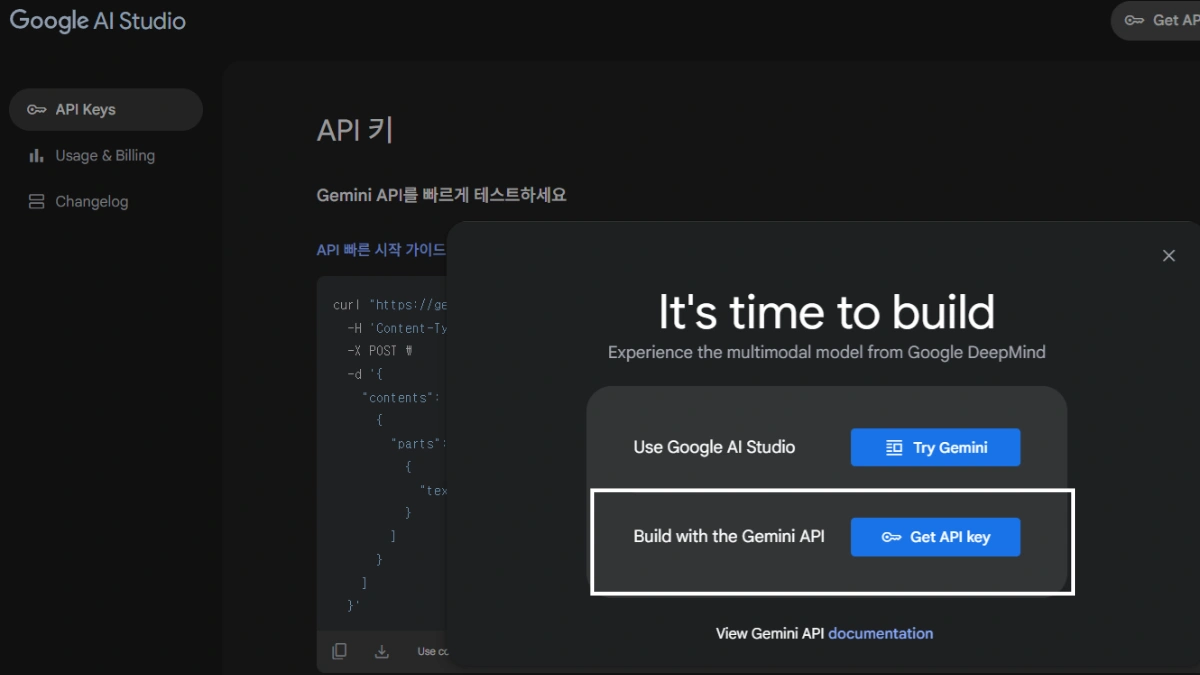
3. Detailed Guide to API Key Creation and Secure Copy Procedure
The API Key creation process is very simple, but how the key is handled after creation is critical to security.
3-1. Step-by-Step Explanation for Creating a New API Key
- Check the 'Manage API Keys' section on the AI Studio dashboard and click the 'Create new API key' button.
- Enter a desired name (e.g.,
Gemini_CLI_Terminal_Access) to easily distinguish the key. This name improves key management and helps determine which key to delete later. - Click the 'Create' button to issue the API authentication token. The key string will be displayed on the screen immediately upon issuance.
3-2. Importance of Copying and Storing the Issued API Key
- When the generated API Key (a long string of letters/numbers) is displayed on the screen, it must be copied immediately. As with many API services, this key cannot be viewed in its entirety again after it disappears from the screen for security reasons.
- Since the key is sensitive information that must never be exposed externally, after copying it to the clipboard, it must be immediately stored in an encrypted password management tool or a secure local environment variable file. If this key is lost, a new one must be obtained to utilize the Gemini CLI.
- Subsequently, this copied key will be used exactly as the
GEMINI_API_KEYvalue when registered as an environment variable in the Gemini CLI.
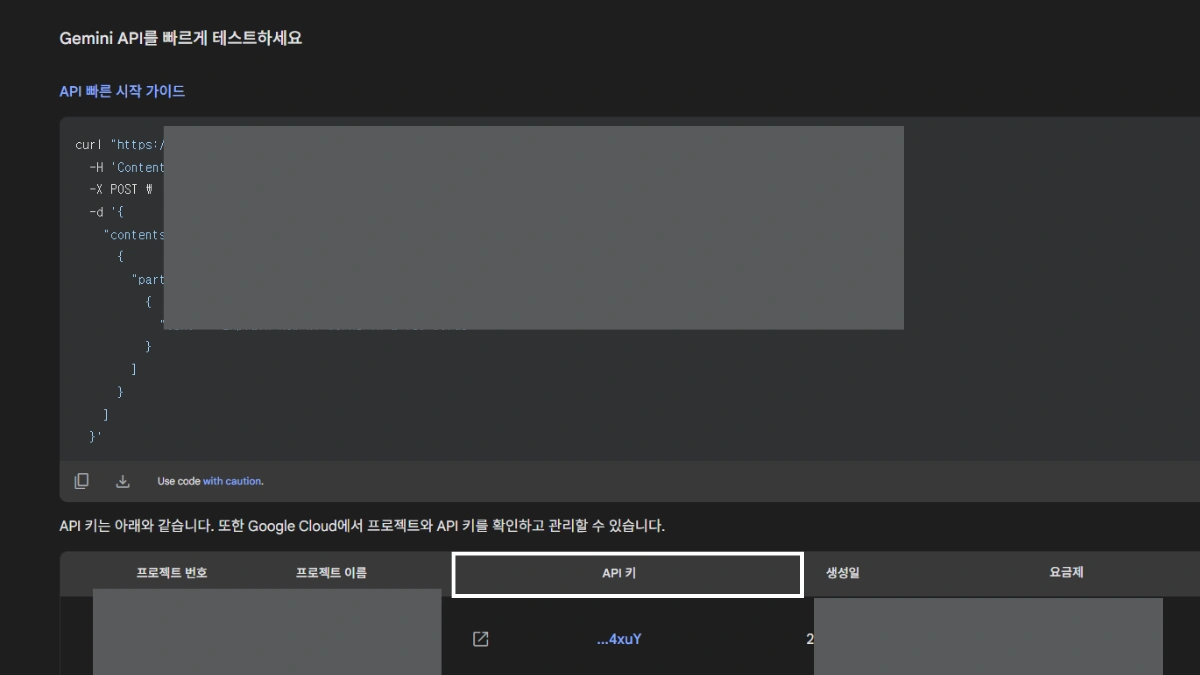
4. Registering the Issued API Key as an Environment Variable (Multi-Platform Detailed Guide)
To ensure the Gemini CLI automatically reads and recognizes the issued API Key, it must be registered as an Environment Variable with the name GEMINI_API_KEY. This is the standard way for CLI tools to find the key safely and consistently. Let's look at the methods for setting environment variables for each operating system. The concept of Related Keyword search optimization applies here, as developers often search for the proper key registration procedure.
4-1. Temporary and Permanent Registration Methods in Windows Environment (PowerShell Focused)
Windows users can register the key temporarily using PowerShell or permanently through system settings. Permanent registration ensures the key persists even after rebooting the system or reopening the terminal, facilitating Gemini CLI utilization.
Temporary Registration in PowerShell (Valid only for the current session)
$env:GEMINI_API_KEY="PASTE_YOUR_ISSUED_API_KEY_HERE"- This method applies only to the current PowerShell session and is automatically cleared when the terminal is closed. It is only suitable for short-term testing or one-time tasks.
Permanent Registration via Windows System Environment Variables (GUI Approach)
- Type 'Environment Variables' into the taskbar search bar and select 'Edit the system environment variables'.
- When the window opens, click the 'Environment Variables(N)...' button at the bottom of the 'Advanced' tab.
- In the 'User variables' or 'System variables' section, click 'New(N)...'. User variables apply only to the current user.
- Enter
GEMINI_API_KEYfor the Variable name. - Accurately paste the issued API Key into the Variable value.
- Click OK to close all windows, and must open a 'new' PowerShell or Command Prompt window to confirm the application. It will not apply to already open windows.
The command to permanently register the Windows System Environment Variable (for the current user) in PowerShell is as follows. This method is faster than using the GUI:
[Environment]::SetEnvironmentVariable("GEMINI_API_KEY", "PASTE_YOUR_ISSUED_API_KEY_HERE", "User")- "User" is the setting that applies only to the currently logged-in user account. Changing it to "Machine" applies it to the entire computer (all users), but requires administrator privileges.
4-2. Permanent Registration in macOS/Linux Environment (Based on Bash/Zsh Shell)
In Unix-based systems like macOS and Linux, permanent registration is achieved by editing the shell configuration file. This is an essential task for setting up the development environment, as it automatically loads the key every time the shell starts, aiding in Long-tail Keyword focused development searches.
- Open the terminal and open your shell configuration file (usually
~/.zshrcor~/.bashrc) with a text editor (e.g.,nano,vi). - Add the following code to the very last line of the file.
export GEMINI_API_KEY="PASTE_YOUR_ISSUED_API_KEY_HERE"- Save and close the file, then must apply the changes immediately to the current session with the following command.
source ~/.zshrc # (If using Zsh)
source ~/.bashrc # (If using Bash)- From now on, the environment variable will be automatically loaded every time a new terminal is opened.
5. Confirming API Key Registration and Checking Basic Gemini CLI Utilization
Confirming that the environment variable is properly registered is a mandatory step before using the Gemini CLI. After confirming, execute basic Gemini CLI commands to test whether the AI feature is working normally.
5-1. Command to Confirm Environment Variable Registration
The command to check the value of the registered GEMINI_API_KEY variable for each operating system is as follows, and the key must be output accurately.
| OS/Shell | Check Command | Characteristics and Notes |
|---|---|---|
| Windows PowerShell | echo $env:GEMINI_API_KEY | Use the $env: prefix. Successful if the value is output. |
| Windows Command Prompt (CMD) | echo %GEMINI_API_KEY% | Use the % symbols. Check in a new window after permanent registration. |
| Linux/macOS (Bash/Zsh) | echo $GEMINI_API_KEY | Use the $ prefix. Must check after running the source command. |
If the API Key is correctly output, the environment variable registration was successful. If the key is not output and appears empty, you must open a new terminal or recheck the permanent registration process (file saving and running the source command, etc.).
5-2. Gemini CLI Installation and Basic Command Utilization Example
Once the API Key registration is complete, you can test the AI features using the Gemini CLI. The Gemini CLI is typically installed via Python's package manager, pip: pip install google-genai.
The most basic command is gemini chat, which inputs text and receives a response. This is the core function of the LLM command tool and the final step to confirm whether the system correctly recognizes the API Key.
# Example: Ask a simple question and receive an answer using the Gemini model
gemini chat "Explain 3 reasons why it is important to register the Gemini API Key as an environment variable."
If this command executes normally and the AI's response is output to the terminal without delay, the free API Key issuance and environment variable registration process is perfectly complete, and you are ready to begin utilizing the Gemini CLI.
Extended Information: Gemini API Key Security Management Best Practices and Free Quota Optimization
As important as obtaining the API Key is managing it safely and efficiently using the free quota provided by Google. It is essential to be familiar with best practices related to API security to proactively prevent potential risks.
6. API Key Security Management Best Practices: Key Leakage Prevention Strategies and Management
The Gemini API Key is a critical credential linked to the user's account and may incur charges for usage. Therefore, special attention must be paid to API security, and key leakage prevention strategies should be the top priority for all AI projects.
- Principle of Prohibition Against Hard-Coding: Directly entering the API Key inside source code files such as Python or JavaScript is the most common and dangerous cause of key leakage. It must always be referenced indirectly through an environment variable (
GEMINI_API_KEY). - Strictly Exclude from Version Control Systems (Git): Use the
.gitignorefile to strictly prevent configuration files containing environment variables (e.g.,.envfiles) from being accidentally uploaded to public repositories like GitHub. - Setting Key Restrictions and Access Control: When creating a key in Google AI Studio, 'API restrictions' should be set to limit the APIs, IP addresses, or website referrers that the key can access. This is essential for API security management as it minimizes damage if a key is leaked by preventing its use in unauthorized environments.
- Periodic Key Reissue and Revocation: Keys that have been in use for a long time or where security is suspected should be immediately invalidated (deleted) using the 'Delete Key' feature and a new API Key issued to eliminate security risks.
7. Free Quota and Usage Monitoring: Cost-Effective AI Utilization
The API Key issued by Google AI Studio typically starts at a free tier with a certain limit, restricting daily or per-minute requests (RPM) and token usage. It is necessary to be aware of these limits when conducting large-scale testing using the Gemini CLI.
- Mandatory Usage Monitoring: Current usage can be monitored in real-time on the Google AI Studio dashboard or the 'APIs & Services' dashboard in Google Cloud Console. If usage spikes, key leakage should be suspected, and immediate verification measures should be taken.
- Preparation for Quota Overruns: Exceeding the free quota will temporarily block API access with a 'Rate Limit Exceeded' error. In this case, you must wait until the next day for the quota to be reset, or enable paid usage (Billing) in the Google Cloud Platform (GCP) to secure higher quota limits.
- Model Selection Efficiency: When using the CLI, selecting a lower-load model (e.g.,
gemini-2.5-flash) to save quota and optimize response speed is advantageous for sustained free AI feature utilization.
Through these systematic API Key management methods, users can continue to utilize free AI features while maintaining strict API security, using the Gemini CLI as a gateway to safely control powerful AI features beyond just a command tool.
Frequently Asked Questions (FAQ) - Gemini API Key Issuance and Environment Variables
What is absolutely necessary to use the Gemini CLI?
An API Key (authentication token) issued by Google is essential. This key allows the Gemini CLI to call Google's AI features (Gemini LLM) and use them normally, which is the first step toward utilizing free AI features.
Where can I get the API Key for free? Is there any charge?
It can be obtained for free by logging in with a Google Account on Google AI Studio (formerly MakerSuite) and clicking the 'Create new API key' button. Issuance itself is free, and an initial free quota (Free Tier) with a certain limit is provided, so there is no cost burden for general testing and usage. However, paid usage settings may be required if the quota is exceeded or if paid models are used.
Why do I need to register the issued API Key as an environment variable, and what is the variable name?
Registering the API Key as the environment variable GEMINI_API_KEY is for API security and convenience. In terms of security, the key can be managed safely without being directly exposed in the code, and in terms of convenience, it allows the Gemini CLI to automatically read the key system-wide and connect to the AI service without needing a separate configuration file.
What is the difference between temporary and permanent registration as an environment variable?
Temporary registration (e.g., $env: command in PowerShell) is only valid in the currently running terminal session, and the key disappears when the terminal window is closed. In contrast, permanent registration (e.g., Windows system variable or Linux .zshrc file) stores the key in the system settings so that it persists even when the terminal is reopened or the computer is rebooted, making it very convenient for Gemini CLI utilization.
What problems occur if the API Key is leaked, and how should I respond?
If the API Key is leaked, a third party can unauthorizedly use Google AI services under the user's name, consuming the user's free quota, or leading to unexpected charges if the account is paid. The response is to immediately invalidate (delete) the corresponding key in the 'Manage API Keys' menu of Google AI Studio and issue and register a new API Key.