How to Set a YouTube Video Thumbnail on Your Blog
We introduce practical multimedia content utilization methods and JavaScript code to effectively embed YouTube video thumbnails on your blog, apply auto-play functionality upon page opening to increase visitor dwell time, and achieve Search Engine Optimization (SEO).
In the modern internet environment, the way blog content is consumed is rapidly changing. In the past, text and image-centric content was mainstream, but today's general users have a distinct tendency to be unsatisfied with just text and photos. As video content has become widespread, it has become essential for blogs to actively utilize multimedia content such as YouTube videos.
YouTube has established itself as an important medium for information provision, education, and knowledge sharing, moving beyond a simple video viewing platform. Accordingly, blog operators need a strategy to effectively expose YouTube videos in thumbnail form on category pages or the main page to increase visitor interest and dwell time, which is critical for maximizing Keyword reach.
The Relationship Between Video and Blog: Evolution to Multimedia Content
In this article, we will introduce methods for easily inserting YouTube videos as thumbnails on blog platforms like Tistory, along with practical tips for capturing visitors' attention and increasing the utilization of multimedia content on your blog. This strategy directly impacts the Search Engine Optimization (SEO) and User Experience (UX) improvement of your blog, which is essential for capturing Related Keyword traffic.
Why is 'Video' Important for Blog Content?
Blogs were once text-centric information platforms. However, recently, blogs are evolving into comprehensive content platforms encompassing not only text but also various multimedia elements such as images, videos, infographics, and audio.
In particular, YouTube videos are a perfect match for blogs in the following ways:
- Information Delivery Power: Intuitively conveys content that is difficult to explain with text, enhancing comprehension.
- Increased User Dwell Time: Video viewing reduces the page abandonment rate and increases time spent on the page, which has a positive impact on SEO and Keyword ranking.
- Mobile Optimization: Provides a fast and intuitive consumption experience for smartphone users, improving mobile accessibility.
Overcoming the Limits of Text Search with Multimedia
The advancement of AI and internet technology has raised user expectations significantly. It is difficult to capture visitors' attention with just keyword listings or descriptions. Users no longer input only words into the search bar but combine question-based search with YouTube-based exploration. Therefore, blog content must also respond to these changes, especially to capture **Long-tail Keyword** queries.
- By combining text + video, you enhance content quality by adding credibility and vibrancy to information, which is key to optimizing for both Related Keyword and Long-tail Keyword searches.
- You improve the Click-Through Rate (CTR) of search results by enhancing visual attention with thumbnails.
- You strengthen brand recognition by powerfully delivering the brand message through the utilization of initial loading video.
Methods for Utilizing Videos on a Blog
YouTube Video Thumbnail Insertion Method (Basic)
This is the most basic method of directly inserting a YouTube thumbnail image into the blog and linking it. This allows you to add visual elements without affecting page loading speed.
a href="https://www.youtube.com/watch?v=kddVKHFSUAw" target="_blank" rel="noopener"
img src="https://img.youtube.com/vi/kddVKHAw/hqdefault.jpg" alt="Insert alternative text including video title"
/a
Useful Thumbnail URL Formats (by Resolution)
https://img.youtube.com/vi/VIDEO_ID/hqdefault.jpg: High Quality Thumbnailhttps://img.youtube.com/vi/VIDEO_ID/mqdefault.jpg: Medium Quality Thumbnailhttps://img.youtube.com/vi/VIDEO_ID/default.jpg: Default Quality Thumbnail
1. How to Apply YouTube Video Auto-Play Popup on Page Open (UX Strategy)
This code designates a specific website address where you want to show the video, and when a user visits that address, it automatically plays the YouTube video in fullscreen. Video playback is set to muted (mute=1) to avoid harming the user experience, and sessionStorage is used to record that the video has been shown once so it does not reappear for repeat visitors.
script
window.addEventListener("DOMContentLoaded", () = {
if (!window.location.href.startsWith("https://ADDRESS") ||
sessionStorage.getItem("videoShown") === "true") return;

let c = document.getElementById("container");
if (c) c.style.display = "none";
else document.body.style.overflow = "hidden";

let v = document.createElement("div");
Object.assign(v.style, {
position: "fixed", top: 0, left: 0, width: "100%", height: "100vh",
zIndex: 9999, background: "rgba(0, 0, 0, 0.7)", overflow = "hidden"
});

let i = document.createElement("iframe");
i.src = "https://www.youtube.com/embed/VIDEO_ADDRESS?autoplay=1&mute=1&loop=1&playlist=ADDRESS&modestbranding=1&controls=0&showinfo=0&rel=0";
i.setAttribute("aria-label", "Blog Introduction Video Auto-Play");
Object.assign(i.style, {
position: "absolute", top: "50%", left: "50%",
transform: "translate(-50%, -50%)", border: 0,
pointerEvents: "none", maxWidth: "none"
});

function resizeVideo() {
const w = window.innerWidth, h = window.innerHeight, r = 16 / 9;
if (w / h r) {
i.style.width = `${w}px`;
i.style.height = `${w / r}px`;
} else {
i.style.width = `${h * r}px`;
i.style.height = `${h}px`;
}
}
resizeVideo();
window.addEventListener("resize", resizeVideo);

let b = document.createElement("button");
b.innerText = "Guide Site.Blog Link Description";
Object.assign(b.style, {
position: "absolute", top: "50%", left: "50%",
transform: "translate(-50%, -50%)", padding: "10px 20px",
color: "white", border: "2px solid white", fontSize: "1.2rem",
cursor: "pointer", zIndex: 10001, fontWeight: "bold",
background: "transparent", letterSpacing: "2px", textTransform: "uppercase",
fontFamily: "'Arial Black', sans-serif"
});

let t = document.createElement("div");
t.innerText = "Go to Shortcut";
Object.assign(t.style, {
position: "absolute", top: "calc(50% + 3.5rem)", left: "50%",
transform: "translateX(-50%)", color: "#692d2d", fontWeight: "bold",
fontSize: "1.5rem", cursor: "pointer", zIndex: 10001,
userSelect: "none", background: "rgba(255, 255, 255, 0.5)",
padding: "4px 12px", borderRadius: "6px"
});

t.addEventListener("click", () = {
sessionStorage.setItem("videoShown", "true");
window.location.href = "https://everydayhub.tistory.com/category/IT";
});

let timer = setTimeout(() = {
sessionStorage.setItem("videoShown", "true");
window.location.href = "https://everydayhub.tistory.com/category/IT";
}, 30000);

b.addEventListener("click", () = {
clearTimeout(timer);
sessionStorage.setItem("videoShown", "true");
window.location.href = "https://openipc.kr";
});

v.append(i, b, t);
document.body.appendChild(v);
Object.assign(document.body.style, { margin: 0, overflow: "hidden" });
});
/script
How to Apply
- Go to **Tistory Manager** **HTML/CSS Editor**.
- Paste the script tag just before the closing
bodytag. - Modify the YouTube video ID and redirection address (
https://ADDRESS,https://openipc.kr, etc.) within the iframe as needed.
2. Applying Video as Blog Thumbnail (Dynamic Loading)
This code finds and processes all areas with the class .youtube-container after the web page has fully loaded. This is highly effective at improving page speed (Core Web Vitals) by displaying a lighter thumbnail image instead of a heavy iframe upon page loading, which benefits all **Keyword** rankings.
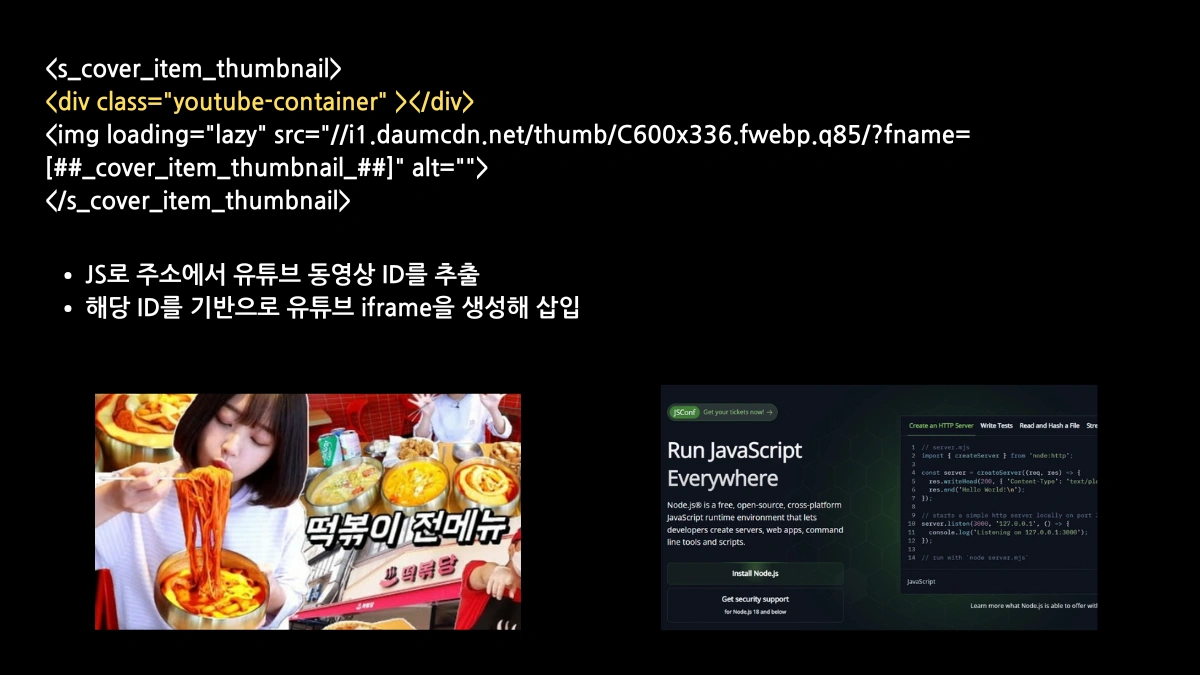
When a user clicks on this thumbnail area, an iframe player capable of immediately playing the YouTube video is created, and the video starts playing automatically. In other words, this code performs the function of dynamically showing a YouTube video thumbnail on a blog or site, and easily switching to video playback upon click.
How to Apply
- Insert the YouTube-related code below at the top of the area where the thumbnail will be applied.
- Apply the YouTube video link within the content body in the format:
div class="youtube-container" data-url="YouTube video address"/div - If both an image and a YouTube video exist simultaneously, the YouTube thumbnail will be preferentially exposed.
- If there is no YouTube video, a default image will be exposed instead.
- Use CSS to add accessibility enhancement features to the YouTube thumbnail.
script
document.addEventListener('DOMContentLoaded', () = {
const containers = document.querySelectorAll('.youtube-container');

containers.forEach(container = {
const url = container.dataset.url;
if (!url) return;

// Extract YouTube video ID
function extractYouTubeID(url) {
const regExp = /^.*(youtu\.be\/|v\/|u\/\w\/|embed\/|watch\?v=|\&v=)([^#\&\?]*).*/;
const match = url.match(regExp);
return (match && match[2].length === 11) ? match[2] : null;
}

const videoID = extractYouTubeID(url);
if (!videoID) return;

// Setting thumbnail URL
const thumbnailURL = `https://img.youtube.com/vi/${videoID}/hqdefault.jpg`;
container.style.backgroundImage = `url(${thumbnailURL})`;
container.style.cursor = 'pointer'; // Visual indication that it is clickable

// Play YouTube video as iframe on click
container.addEventListener('click', () = {
const iframe = document.createElement('iframe');
iframe.src = `https://www.youtube.com/embed/${videoID}?autoplay=1&rel=0&showinfo=0`;
iframe.allow = 'accelerometer; autoplay; clipboard-write; encrypted-media; gyroscope; picture-in-picture';
iframe.allowFullscreen = true;
iframe.style.cssText = 'position:absolute;top:0;left:0;width:100%;height:100%;border:none;';

container.innerHTML = ''; // Remove existing thumbnail
container.appendChild(iframe);
});
});
});
/script- Finds elements with the class
.youtube-containerand processes them dynamically. - Only the video ID is extracted from the YouTube video URL stored in the data attribute
data-url, optimizing page loading speed. This is crucial for improving rankings for all types of Keywords. - The YouTube thumbnail image is set as the background using the extracted ID.
- When a visitor clicks the thumbnail, it switches to a YouTube iframe player and starts video playback at that spot, reducing the abandonment rate and improving the performance of Long-tail Keyword content.
Inducing User Engagement and SEO: Catching Two Birds with One Stone (Improving Long-tail Keyword Strategy)
You can utilize video in two simple ways. Video is no longer a supplementary element; it can capture the attention of blog visitors and increase content credibility. Specifically, using thumbnail images and dynamic loading scripts satisfies the core SEO factors of improving page speed and enhancing user experience. Try upgrading your blog to an experiential space by utilizing the Text + Video + Thumbnail + Auto-Popup UX Strategy. This link is the address for the sample video: https://youtu.be/zsJmtKE-7Pw?feature=shared
Frequently Asked Questions (FAQ)
How does directly embedding a YouTube thumbnail image on a blog help SEO?
A thumbnail is a visual click-bait device that increases the Click-Through Rate (CTR) of the blog post in search results, positively influencing search ranking. Furthermore, immediate video playback upon click reduces the page abandonment rate and increases user dwell time, creating a favorable environment for SEO and Keyword visibility.
Are there any issues with SEO or User Experience (UX) when using the auto-play popup function upon page open?
The auto-play function requires caution in terms of User Experience (UX). In particular, auto-play with sound can inconvenience visitors and increase the abandonment rate. Therefore, setting it to play in a muted state, as in the provided code, and using sessionStorage to display it only once is a good way to achieve promotional effects without compromising UX. This helps retain users who searched for specific **Related Keyword** content.
What is the biggest advantage of the dynamic thumbnail script using .youtube-container?
This script uses a 'Lazy Loading' method, which loads a lighter thumbnail image first instead of the actual YouTube video player (iframe). This helps improve the page's initial loading speed (LCP) and maintain the Core Web Vitals score, preventing unnecessary resource loading and establishing an optimized SEO environment for Long-tail Keyword content.